






Phantom Blade Zero's minimum specification targets 1080p at 30 FPS with upscaling enabled, while the recommended specification targets 1440p at 60 FPS with upscaling enabled. After entering the game, apply the recommended quality first, then adjust resolution, the quality preset, and ray tracing according to how smoothly it runs.
Which Tier Does My PC Fall Into?
| Tier | Processor | Graphics Card | Official Target (with upscaling enabled) |
|---|---|---|---|
| Minimum | i7-8700K / Ryzen 5 3600 | GTX 1660 6GB / RX 5500 XT 8GB | 1080p, 30 FPS |
| Recommended | i5-10600K / Ryzen 5 5600X | RTX 3060 Ti 8GB / RX 6700 XT 12GB | 1440p, 60 FPS |
Both tiers require a 64-bit Windows 10/11 system, 16GB of memory, DirectX 12, and an SSD. The frame rates in the table correspond to the upscaling conditions officially listed; actual performance also varies with the scene, quality settings, and hardware combination.
Your First Time in the Game: Complete These Three Steps
- Wait for the first-time shader compilation to finish, and keep the game in the foreground.
- Open "Settings" (shown as "System" while playing) and go to "Graphics".
- Select "Apply Recommended Graphics Preset", then choose "Apply Changes".
The launch announcement recommends NVIDIA driver 617.42 for this title. Players running a newer version can select 617.42 again from the driver page in the NVIDIA App and choose a clean installation. AMD graphics card users can update Adrenalin through AMD's official driver page.
When Frame Rates Run Low, Which Options Should You Adjust First?
The launch settings Q&A offers the following adjustment directions:
- Lower the resolution or the overall quality preset, then adjust items such as shadows and effects.
- Set Ray Tracing to Off, freeing up the performance cost used for lighting effects.
- Use super resolution according to your graphics card's support, and close background programs that consume more resources.
When you want higher image quality, gradually try ray tracing or path tracing. DSOGaming's review-build testing placed the performance cost of ray tracing between that of traditional rendering and path tracing; path tracing is better suited to being used together with upscaling and frame generation.
How Do You Adjust DLSS in the Graphics Menu?
Go to the Graphics tab, select DLSS under Super Resolution Method, and switch modes through DLSS Super Resolution Mode. The interface offers Quality, Balanced, Performance, Ultra Performance, and DLAA; Quality leans toward image quality, Performance leans toward frame rate, and DLAA applies anti-aliasing at native resolution. Frame Generation is a separate setting.
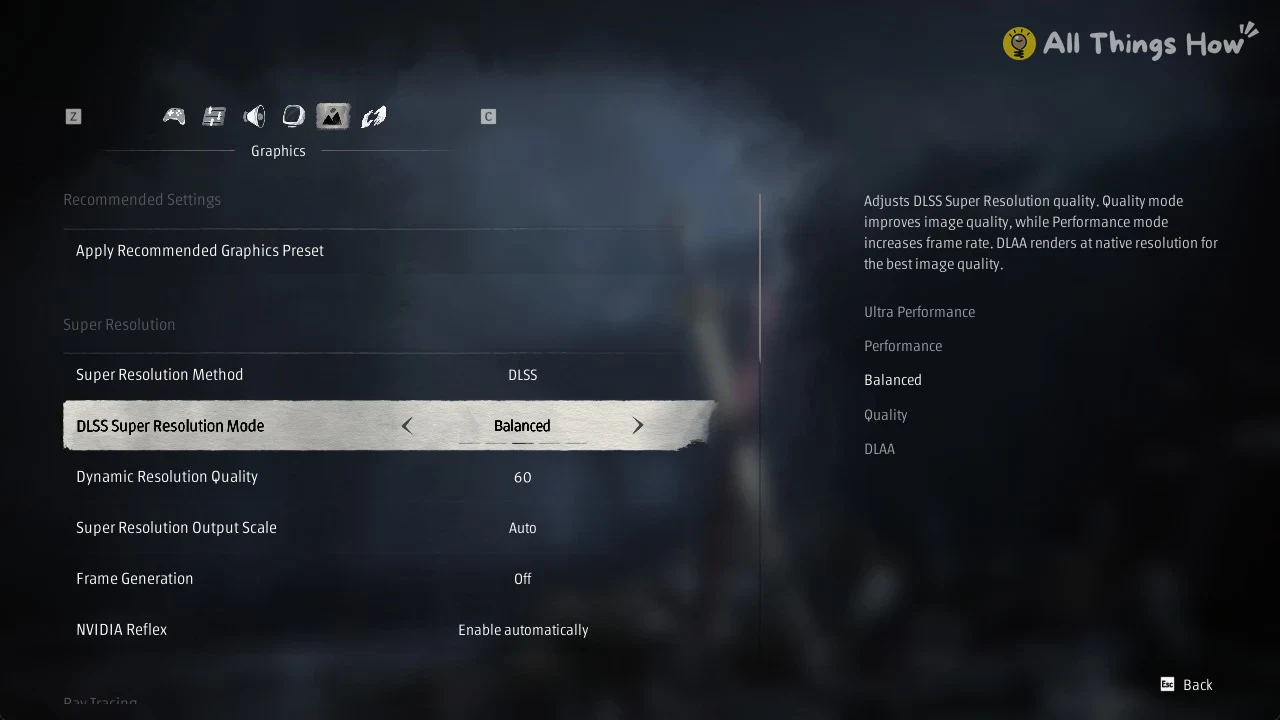
The DLSS mode and Frame Generation settings screen (All Things How)
Which Tested Settings from the RTX 4060 and RTX 3070 Can You Reference?
Two player tests published on October 29 show the game running at 1080p high quality; the setting labels shown in the footage can be compared item by item with your own Graphics menu.
RTX 4060: 1080p High with DLSS Quality
ProTest Games tested with an RTX 4060 8GB, a Ryzen 7 5800X, 32GB of DDR4-3200 memory, and driver 621.01. The 4:00–5:00 chapter of the video runs the following combination:
| Setting | Test Setting |
|---|---|
| Output resolution | 1920×1080 |
| Quality preset | High |
| Super resolution | DLSS Quality |
| Ray tracing | Off |
| Frame generation | Off |
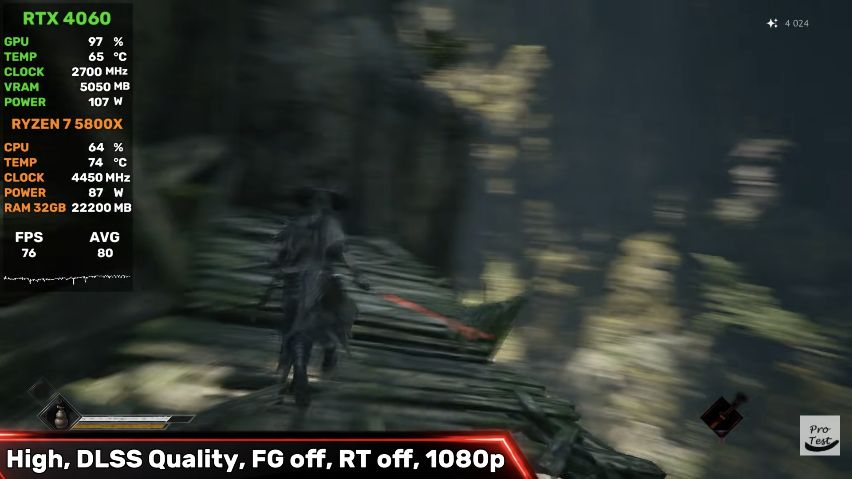
A frame from ProTest Games' test video at 4:53; the overlay shows FPS 76, AVG 80.
The quality preset and DLSS mode in this combination can each be selected in the Graphics menu. The video also offers chapters covering high quality with DLAA, high quality with DLSS Quality combined with 2x frame generation, and medium quality, making it easy to see how the same PC behaves after changing settings.
RTX 3070: 1080p High with DLAA
Ineffable Benchmarks tested with an RTX 3070 VENTUS 8GB, an i5-12400F, and 32GB of DDR4-3200 memory. The 4:00–6:00 chapter of the video is labeled 1080p, High, and DLAA.
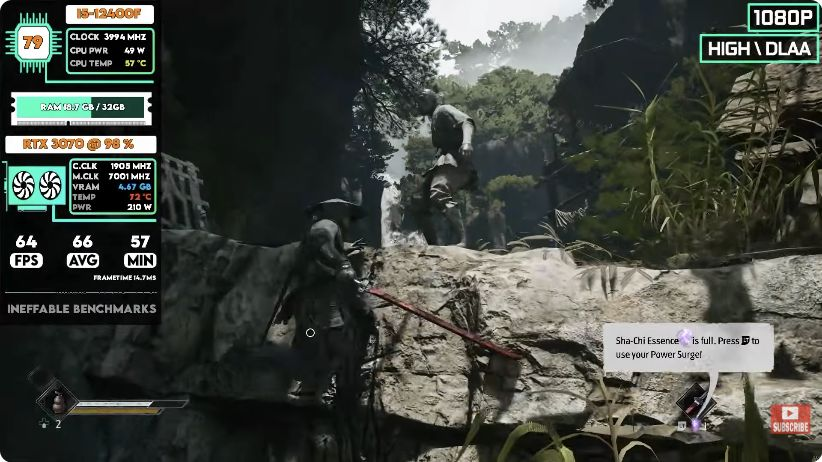
A frame from Ineffable Benchmarks' test video at 4:30; the overlay shows FPS 64, AVG 66, MIN 57.
The counters in both images correspond to the moment each frame was captured from its video. Actual performance varies with the processor, the scene, and the quality combination; the corresponding chapters of the original videos show the game running continuously under these settings.
How Do the RTX 50 Series Cards Perform Under the Same Settings?
Gamersky's October 27 pre-launch test used a Ryzen 7 9800X3D, 32GB of DDR5-6000 memory, and driver 621.01, measured along a fixed route in the 悲泣溪谷 (Weeping Valley) area. The table below is unified at 1440p output, maximum quality, path tracing on, DLSS Performance mode, and Ray Reconstruction preset F, with frame generation off.
| Graphics Card | Average Frame Rate |
|---|---|
| RTX 5060 | 46.8 FPS |
| RTX 5060 Ti 8GB / 16GB | Both around 54 FPS |
| RTX 5070 | 67.1 FPS |
| RTX 5070 Ti | 83.4 FPS |
| RTX 5080 | 95.3 FPS |
These figures correspond to the test build, route, and settings described above. Ray tracing and path tracing performance improvements for the launch version arrive with the day-one update.
What Do DLSS, Ray Tracing, and Path Tracing Each Do?
| Feature | Effect and Conditions of Use |
|---|---|
| Super resolution | The game offers DLSS, FSR, and XeSS options for reconstructing the output image |
| Ray tracing | Improves lighting effects such as reflections and shadows while adding rendering cost |
| Path tracing | Provides a more complete lighting simulation; enabling it on GeForce RTX automatically turns on DLSS Ray Reconstruction |
| Dynamic Multi Frame Generation | NVIDIA's launch demo used GeForce RTX 50 series cards; the generation multiplier can be adjusted to match the target frame rate |
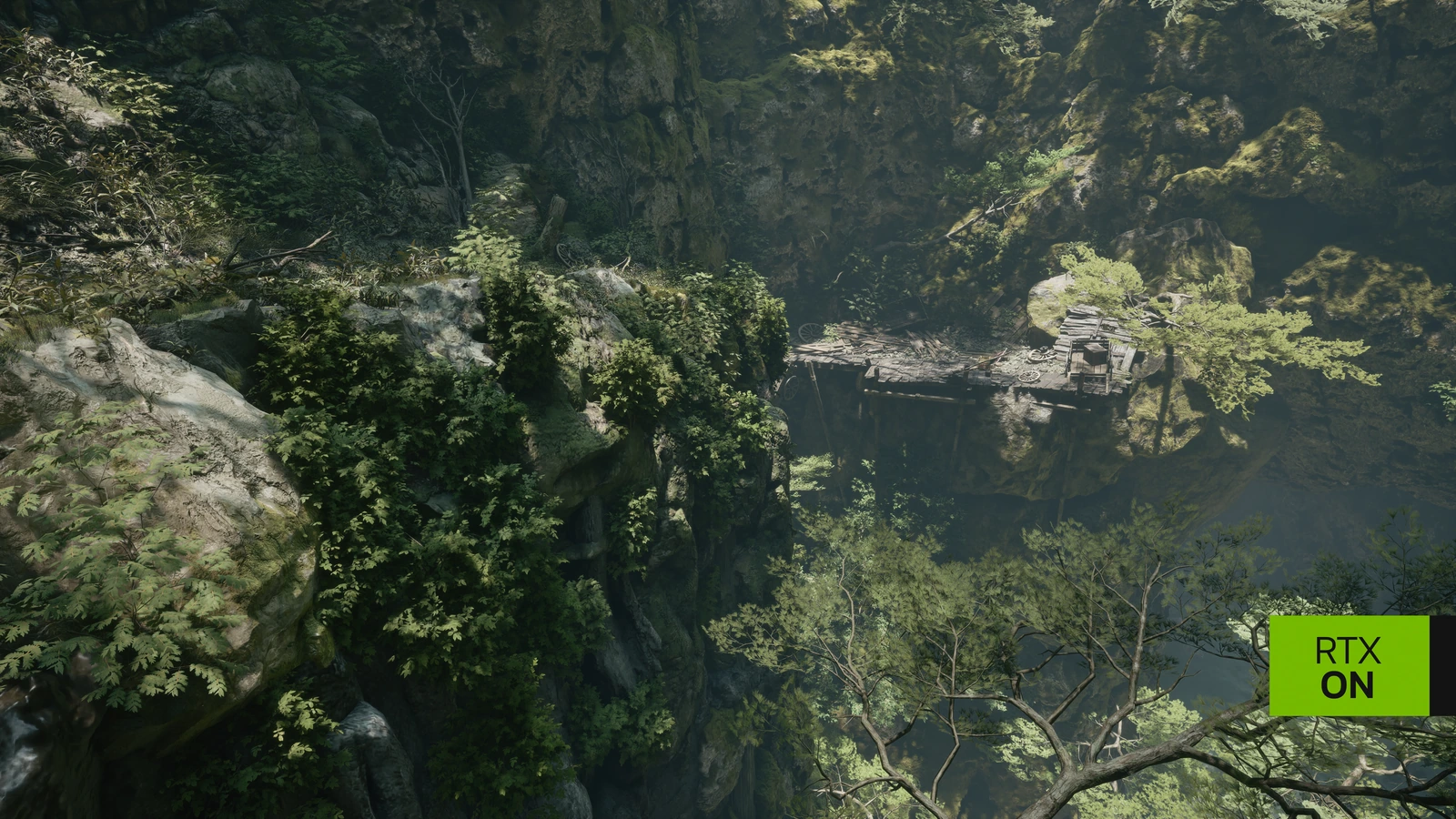
A canyon scene from Phantom Blade Zero with path tracing enabled (NVIDIA)
Where Do You Adjust Ray Tracing?
In the PC review build documented by DSOGaming, ray tracing and path tracing are toggled from the main menu. To change either of these, reach a checkpoint first, then return to the main menu to make the adjustment.
The roughly 5GB day-one update includes ray tracing and path tracing performance improvements. Players who preloaded should complete the update before adjusting quality settings.
References
-
ProTest Games: RTX 4060 tiered test, 4:00 high quality DLSS Quality
-
Ineffable Benchmarks: RTX 3070 tiered test, 4:00 high quality DLAA
More Phantom Blade Zero guides
Frequently asked questions
What PC do I need to run Phantom Blade Zero?
The minimum specification targets 1080p at 30 FPS with upscaling enabled, pairing an i7-8700K / Ryzen 5 3600 with a GTX 1660 6GB / RX 5500 XT 8GB. The recommended specification targets 1440p at 60 FPS with upscaling enabled, pairing an i5-10600K / Ryzen 5 5600X with an RTX 3060 Ti 8GB / RX 6700 XT 12GB. Both tiers require a 64-bit Windows 10/11 system, 16GB of memory, DirectX 12, and an SSD.
Which NVIDIA driver should I use?
The launch announcement recommends driver 617.42 for this title. If you have a newer driver installed, you can select 617.42 again from the driver page in the NVIDIA App and perform a clean installation. AMD graphics card users can update Adrenalin through AMD's official driver page.
How do I enable DLSS?
Go to the Graphics tab, select DLSS under Super Resolution Method, then choose a mode — Quality, Balanced, Performance, Ultra Performance, or DLAA — under DLSS Super Resolution Mode. Frame Generation is a separate setting.
How do I change ray tracing or path tracing?
In the PC review build documented by DSOGaming, both are toggled from the main menu: reach a checkpoint first, then return to the main menu to adjust them. The roughly 5GB day-one update includes ray tracing and path tracing performance improvements, so preloading players should complete it before adjusting quality settings.